
Web search and integrations
Let the assistant search the web and work in services such as Linear, Notion or GitHub, and choose which tools a conversation may use.
Choose tools for a conversation
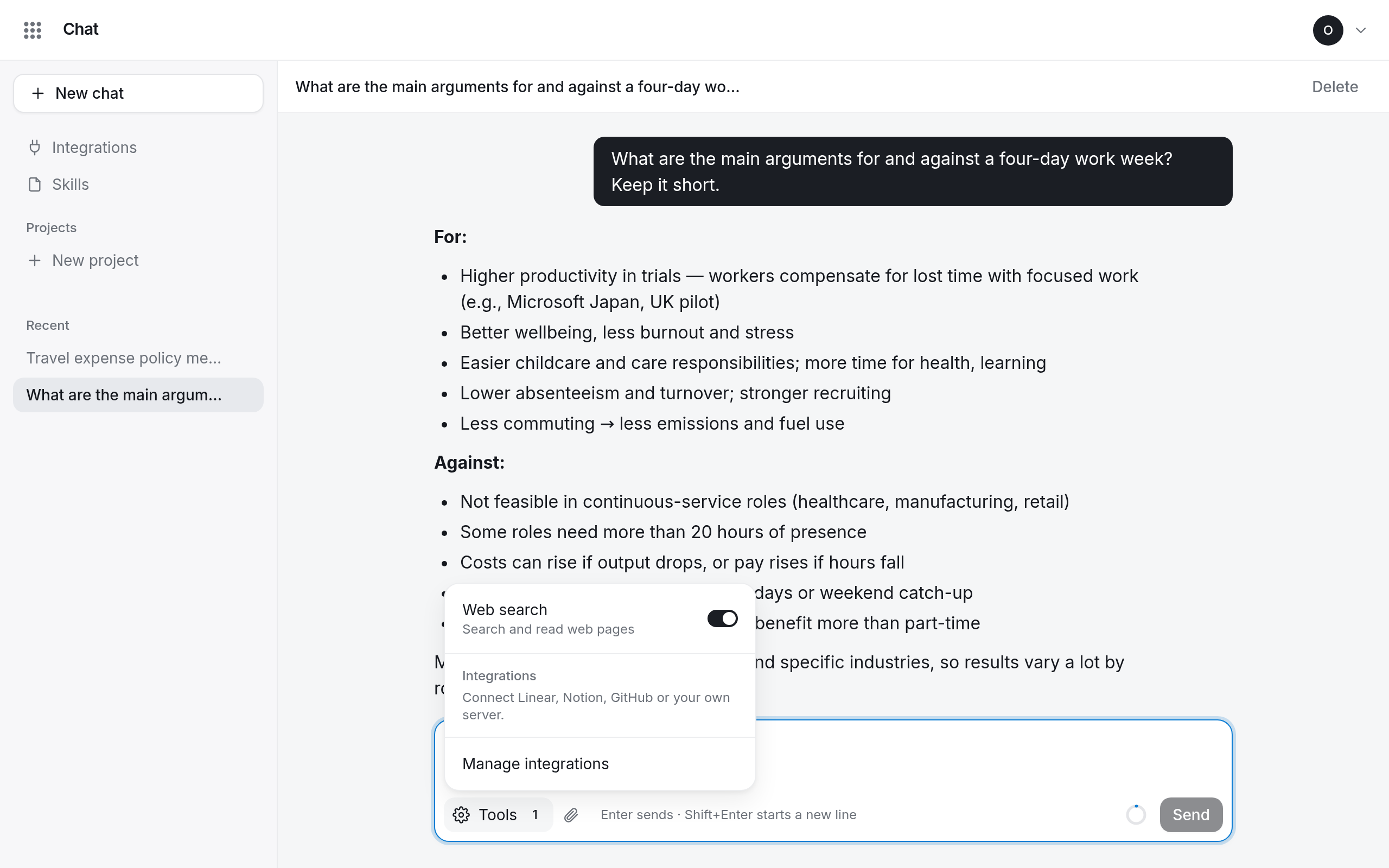
Select Tools next to the message box. Switch on what the assistant may use:
- Web search: search the web and read pages.
- Each of your Integrations.
The choice applies to the next message and the rest of the conversation. A new chat starts with every tool that is ready switched on.
Connect a service
Select Integrations in the sidebar. Ready to connect lists the services you can add, such as Linear, Notion, Sentry, Stripe, GitHub, and Jira & Confluence.
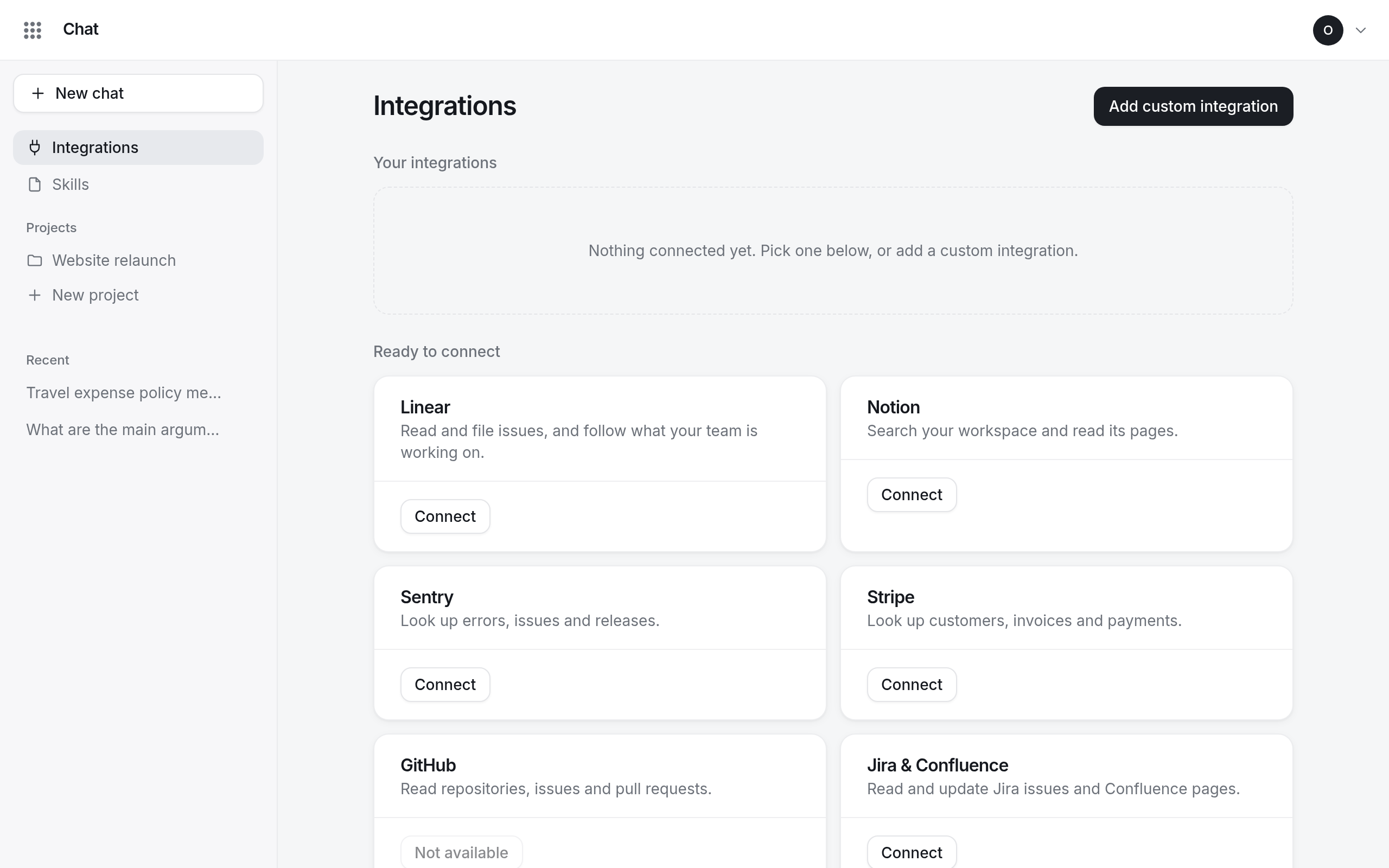
- Select Connect on the service.
- Sign in to the service and allow access.
- Back in Chat, the integration shows Connected and its tools are ready.
Your integrations are yours alone: they act with your account at the service, and colleagues cannot use them. You can connect a second account of the same service with Connect another account.
Add your own server
Any remote MCP server reachable over HTTPS works. Select Add custom integration, give it a Name and the Server address, and choose how it signs in:
- Sign in with the service (OAuth)
- An API key or token: the Header and Value to send. The key is stored encrypted; nobody can read it back, you included.
- None
Choose which tools an integration offers
On an integration's card, open N of M tools on and switch tools on or off. Tools marked may delete or overwrite start switched off; turn them on only if you want the assistant to do that. A conversation can use up to 200 integration tools at once.
When something is wrong
| Status | What to do |
|---|---|
| Needs sign-in | select Reconnect and sign in to the service again |
| Needs a key | select Update key |
| Unreachable | the service did not answer last time; try Refresh tools |
To remove an integration, open its ⋯ menu and choose Remove. Its sign-in is forgotten.