
Conversations
Start a conversation, write and send messages, follow what the assistant does, and rename or delete conversations.
Start a conversation
Select New chat, write your message in the box under What can I help with? and press Enter. The conversation appears under Recent and gets a title after the first answer.
- Enter sends; Shift+Enter starts a new line.
- You can send one message at a time: while an answer is being written, Send waits.
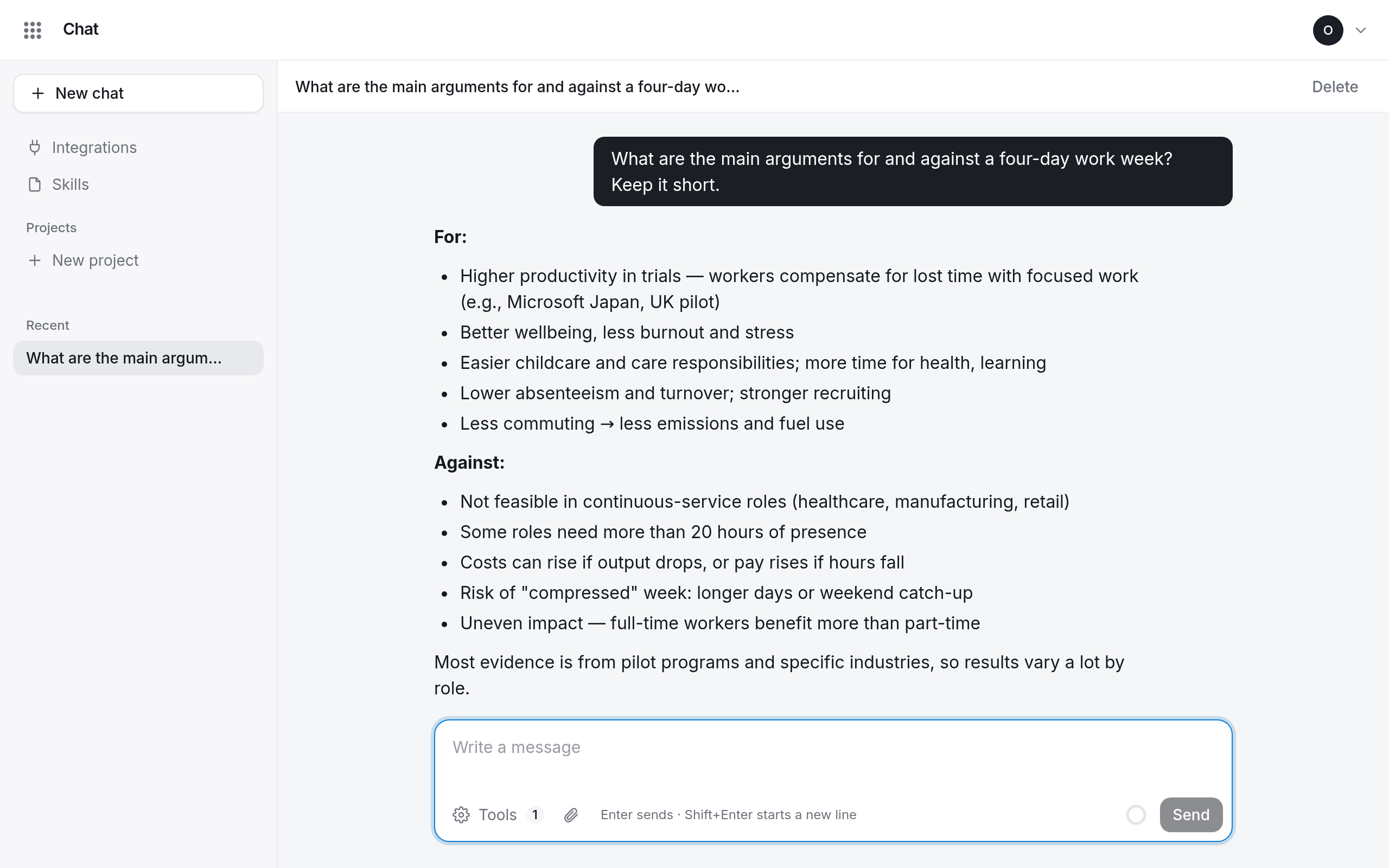
Follow what the assistant does
Answers appear as they are written. When the assistant searches the web, reads one of your files, uses an integration or writes a document, a line under the answer says so, for example Searched the web for “…” or Read contract.pdf p. 22–23. Links in those lines open the page it read.
Images in answers are never loaded; they show as [image: description, not shown].
If an answer stops with This answer could not be completed, send your message again.
Give the assistant more to work with
- Attach files: PDFs, Word, Excel, PowerPoint and text files.
- Turn tools on or off: web search and your integrations.
- Put the conversation in a project so it shares a memory with related ones.
- Write skills for work you ask for again and again.
Rename or delete a conversation
In the sidebar, open the conversation's ⋯ menu and choose Rename or Delete. In an open conversation, Delete is also at the top.
A deleted conversation is gone for good. In a project, its project's memory also forgets what was said in it.